Setup guide

Get ProxyTool ready in a few minutes

Install the app, create an account, allow background running, then connect your Claude or Codex account. Follow the steps below — each one includes a real screenshot from the app.

  • Works on Android
  • Register, then auto login
  • Bind Claude or Codex
  • Keep agent online in background
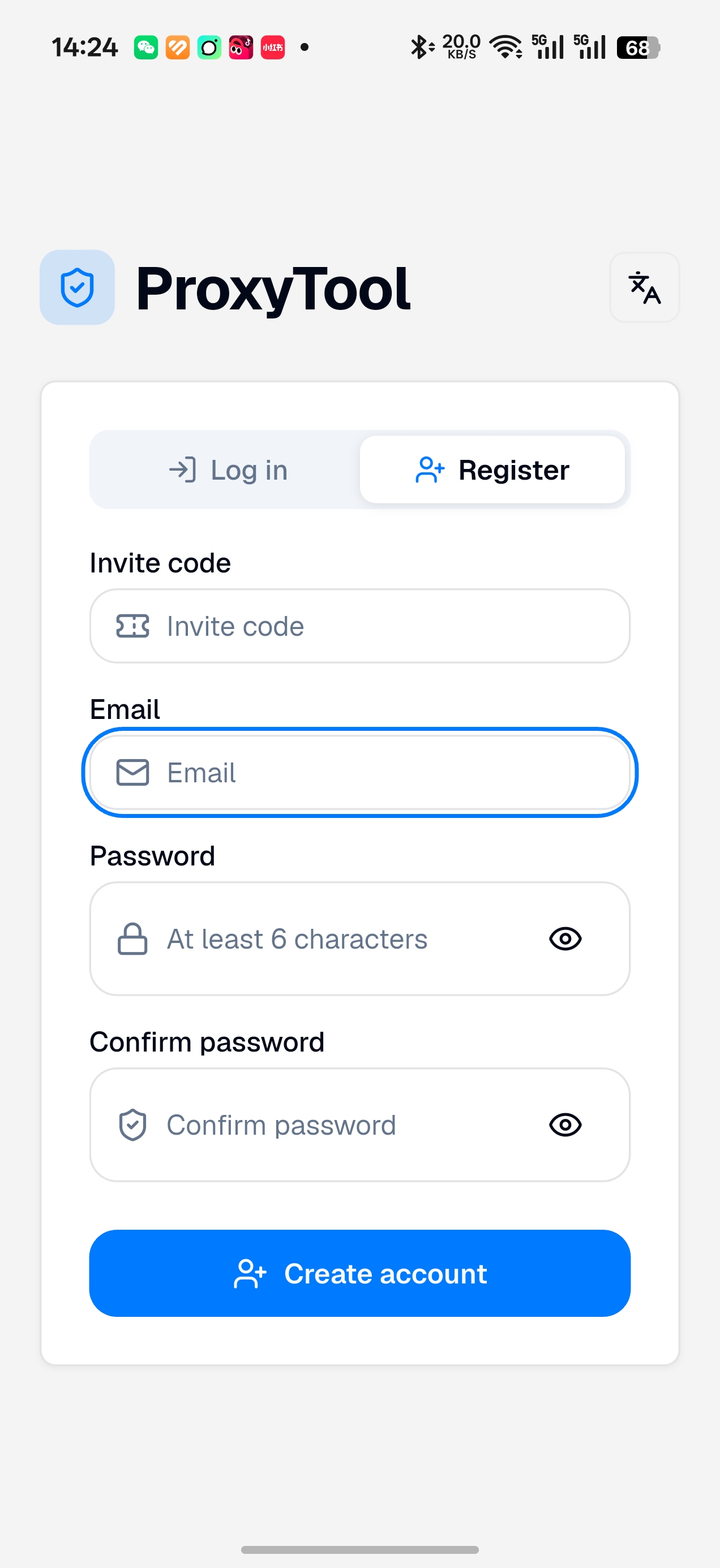
ProxyTool register screen preview
Registration screen

Step-by-step setup

Work through the list in order. Most people finish in under 10 minutes if they already have a Claude or Codex account.

Step 01Start here

Download and install

Get the APK and install ProxyTool on your phone.

  1. 1Tap the Download button on this page (or open the download link on your Android phone).
  2. 2When the file finishes downloading, open it and tap Install.
  3. 3If Android asks for permission to install apps from this source, turn that permission on, then install again.
Download APK
Step 02

Create your account

Register once — ProxyTool signs you in right after.

  1. 1Open ProxyTool.
  2. 2On the welcome screen, switch to the Register tab (not Log in).
  3. 3Fill in Invite code (if you were given one), Email, Password (at least 6 characters), and Confirm password.
  4. 4Tap Create account.
  5. 5When registration succeeds, you are logged in automatically. You do not need to log in again right away.
ProxyTool register screen with invite code, email, and password fields
Screenshot · Step 02
Step 03

Keep the agent running in the background

Stop the system from killing ProxyTool when the screen is off.

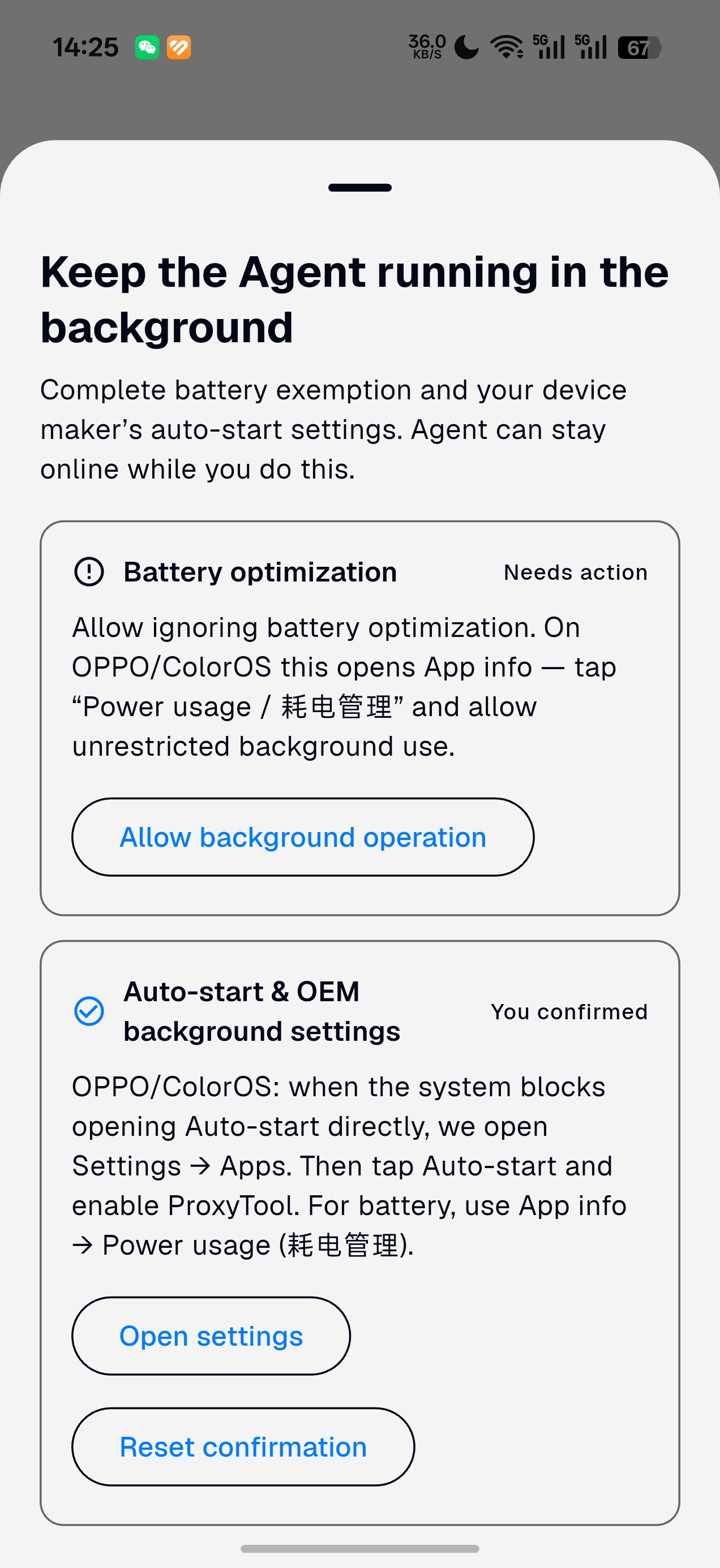
  1. 1After login, a sheet appears: Keep the Agent running in the background.
  2. 2Battery optimization — Tap Allow background operation. On OPPO / ColorOS this may open App info. Tap Power usage (耗电管理) and allow unrestricted background use.
  3. 3Auto-start & OEM settings — Tap Open settings. Enable auto-start for ProxyTool. When finished, return to the app and confirm if asked.
  4. 4You can complete these settings while staying signed in.

If ProxyTool goes offline after you lock the phone, come back to this step and re-check battery and auto-start permissions.

Battery optimization and auto-start setup sheet in ProxyTool
Screenshot · Step 03
Step 04

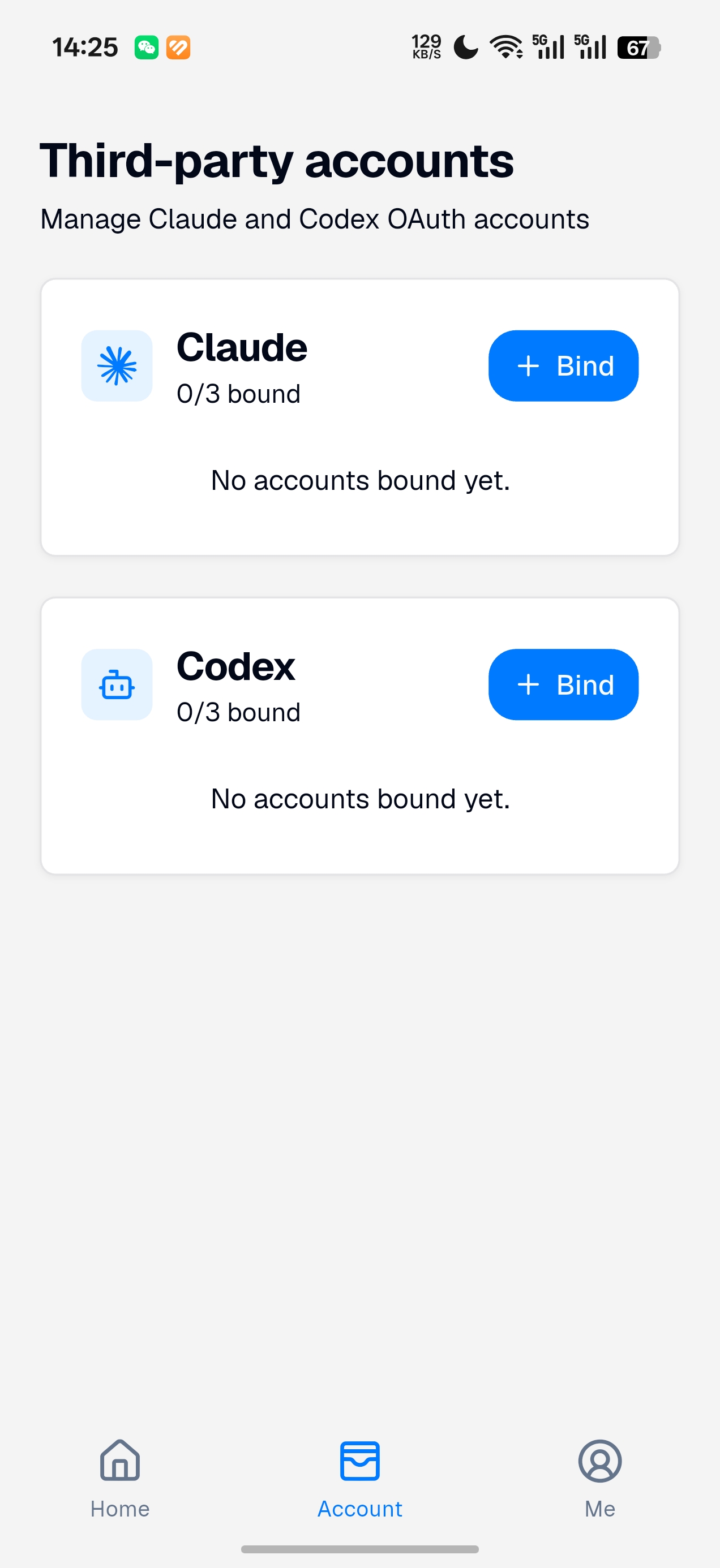
Open third-party accounts

Go to the Account tab to manage Claude and Codex.

  1. 1Tap Account in the bottom navigation bar.
  2. 2You will see Third-party accounts with Claude and Codex cards.
  3. 3Each provider can hold up to 3 bound accounts (shown as 0/3, 1/3, and so on).
Third-party accounts screen showing Claude and Codex with Bind buttons
Screenshot · Step 04
Step 05

Start binding Claude (or Codex)

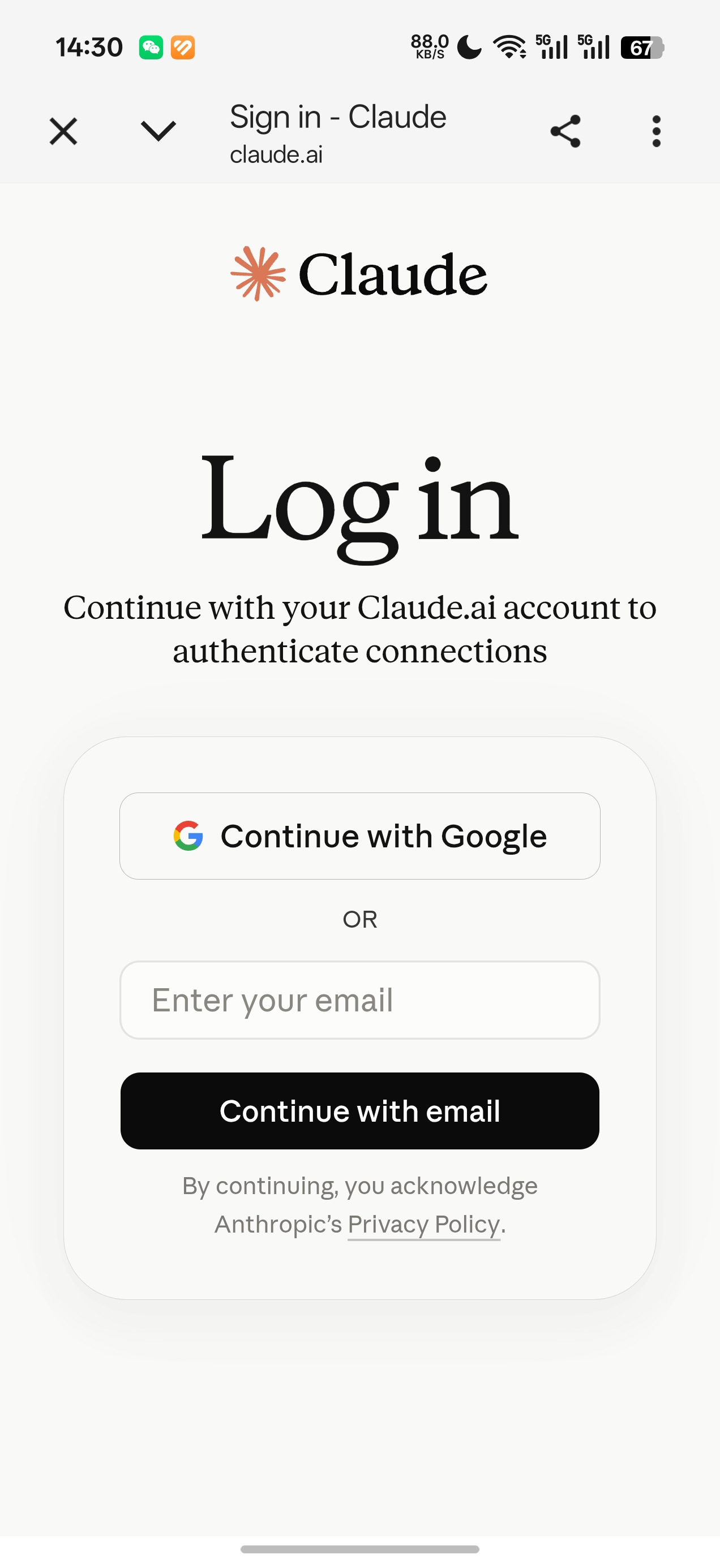
Sign in with your Claude.ai account in a secure browser.

  1. 1On the Claude card, tap + Bind. (For Codex, use the same steps on the Codex card.)
  2. 2ProxyTool opens a secure browser first, and falls back to your system browser if needed. The login page is never loaded inside an embedded WebView.
  3. 3On the Claude login page, continue with Google or enter your email and complete sign-in.
Claude.ai login page opened for authorization
Screenshot · Step 05
Step 06

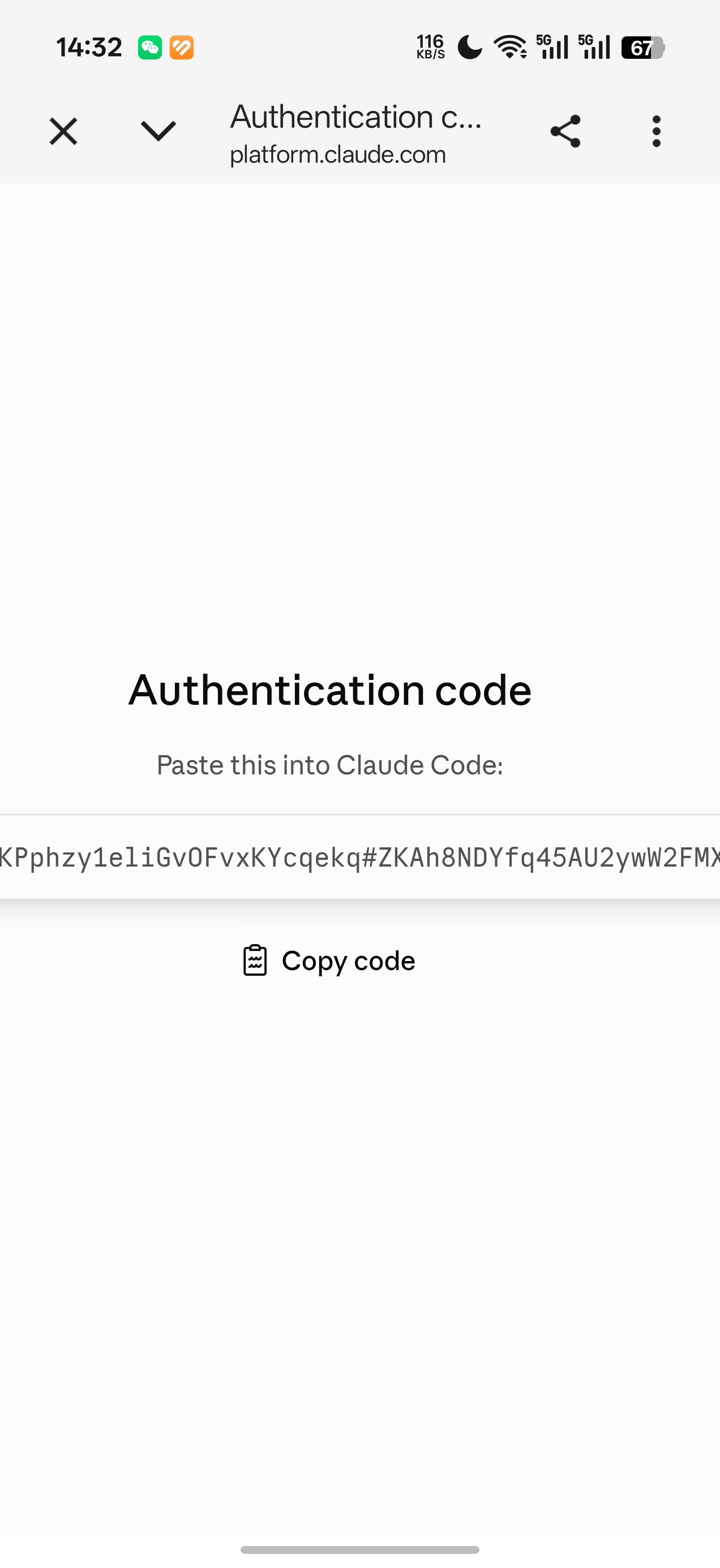
Copy the authentication code

Claude shows a one-time code after you sign in.

  1. 1When login succeeds, the page shows Authentication code with the text Paste this into Claude Code.
  2. 2Tap Copy code.
  3. 3Close the browser (or the tab) and return to ProxyTool.

The code is long. Always use Copy code instead of typing it by hand.

Authentication code page with Copy code button
Screenshot · Step 06
Step 07

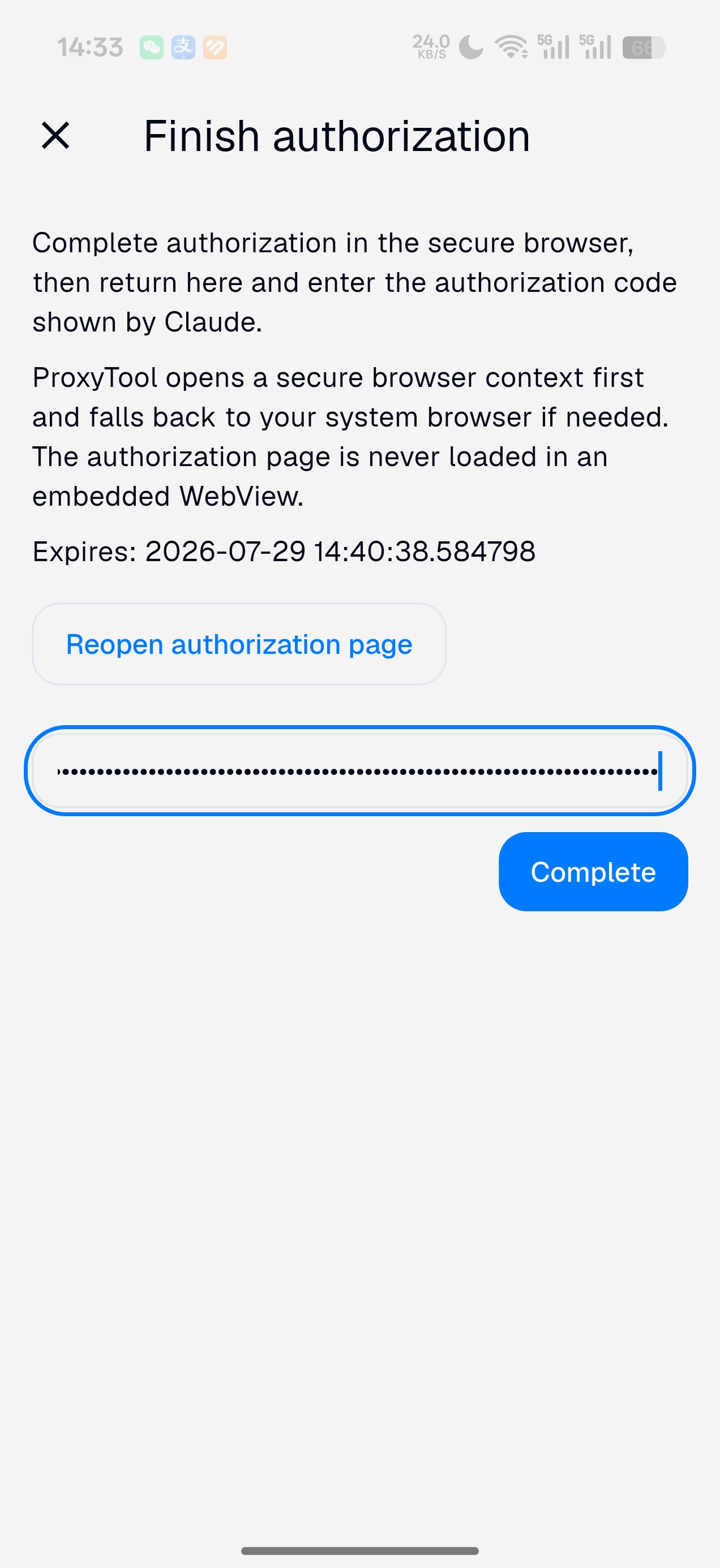
Paste the code and finish

Return to ProxyTool and complete authorization.

  1. 1You should see the Finish authorization screen.
  2. 2Paste the authentication code into the input field.
  3. 3Tap Complete.
  4. 4If the page expired, tap Reopen authorization page, sign in again, and copy a new code.
Finish authorization screen with code field and Complete button
Screenshot · Step 07
Step 08

Confirm the binding

Your account should appear under Claude.

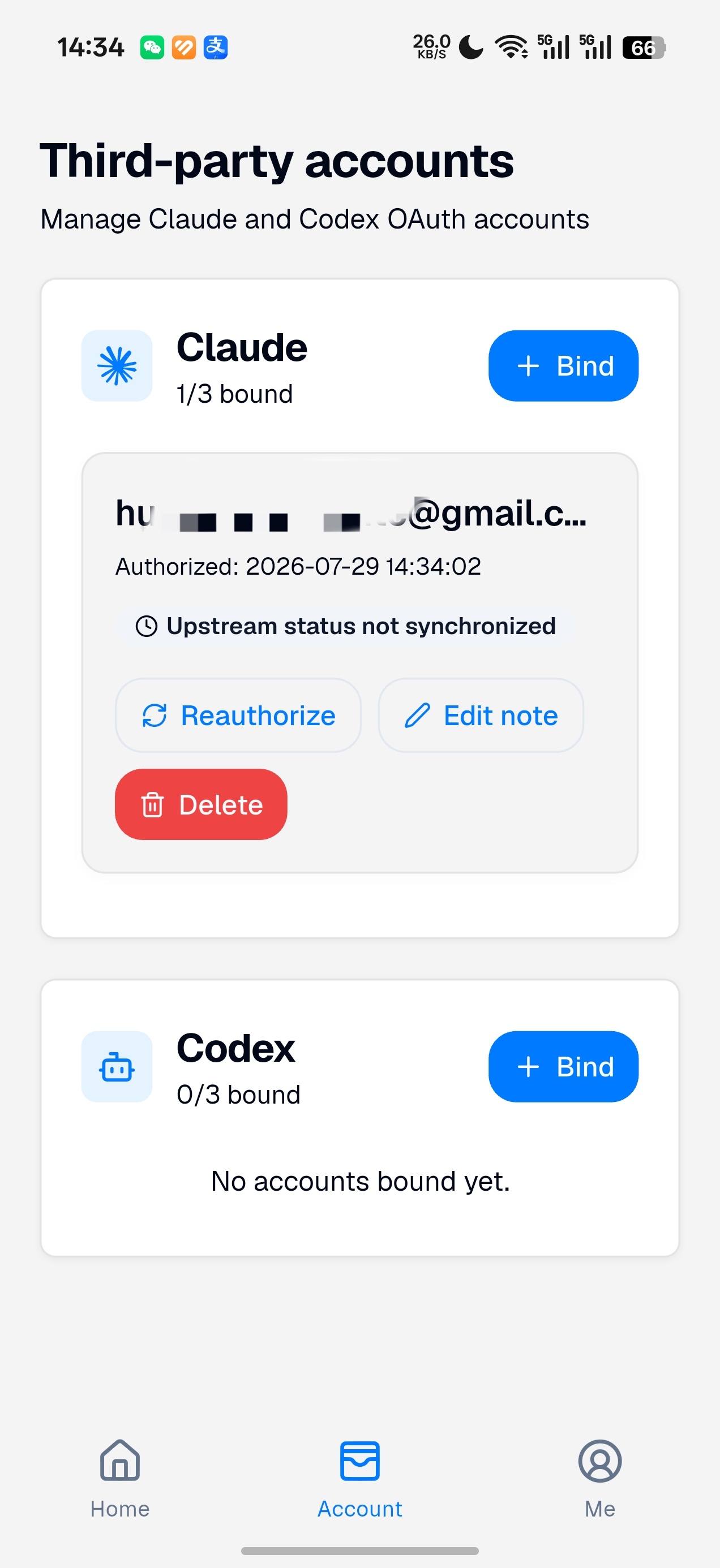
  1. 1Back on Third-party accounts, Claude should show 1/3 bound (or higher if you bind more).
  2. 2Your email appears under the card with the authorized time.
  3. 3You can Reauthorize, Edit note, or Delete a binding later from the same card.
  4. 4Repeat the bind flow for Codex if you need it.
Claude account successfully bound under third-party accounts
Screenshot · Step 08

Common questions

Short answers for the issues people hit most often during setup.

Do I need an invite code?

Only if your team or provider gave you one. If the Register form asks for it, enter the code you received before creating the account.

Why do I need battery and auto-start settings?

Android manufacturers often pause apps in the background to save power. Without these permissions, ProxyTool’s agent can go offline when you lock the phone.

Is the Claude login page safe?

Yes. ProxyTool opens authorization in a secure browser context (or your system browser). The login page is not loaded inside an embedded WebView.

The authentication code expired. What now?

On the Finish authorization screen, tap Reopen authorization page, sign in again, copy a new code, paste it, and tap Complete.

Can I bind more than one Claude account?

Yes. Each provider supports up to 3 bound accounts (shown as x/3 on the card). Tap + Bind again to add another.

Where do I manage or remove a binding?

Open Account → Third-party accounts. On a bound account you can Reauthorize, Edit note, or Delete.
Download ProxyTool APK